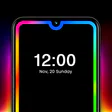
Edge Lighting: LED Borderlight
Maxlabs Personalization ToolsPersonalization
4.61.11K Reviews
- Version
- 540
- Installs
- 10.00M
- Age Rating
- Everyone
Screenshots
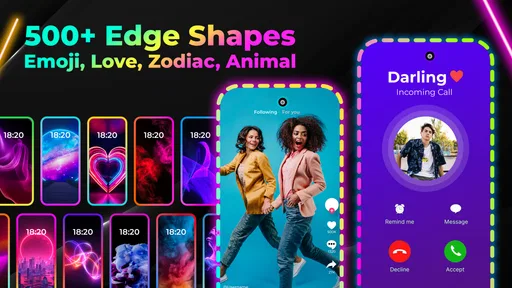
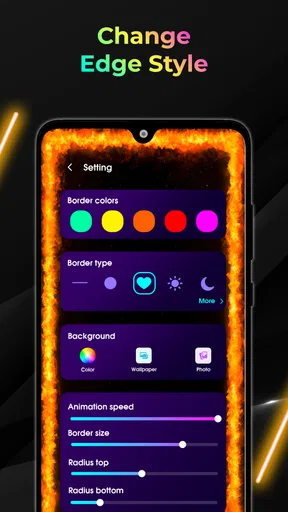
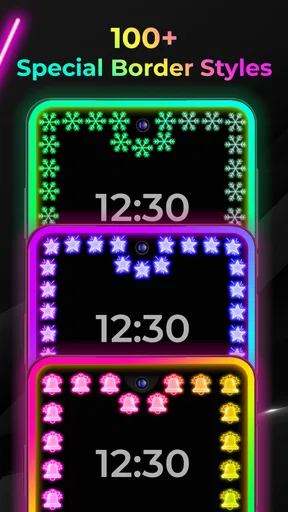
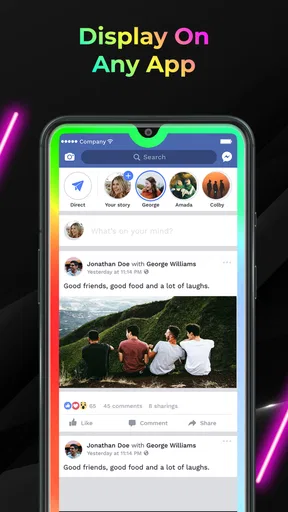
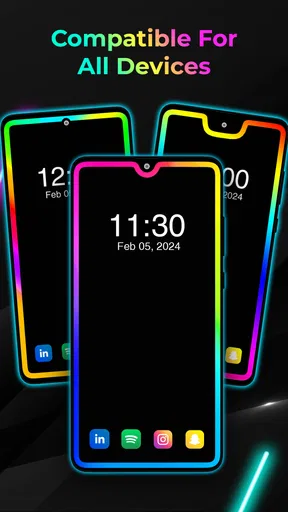
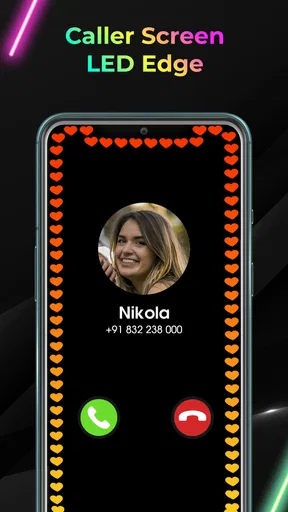
Our Review of Edge Lighting: LED Borderlight
 Analysis by Appyee
I like the idea of a phone that feels a little more personal without changing how I use it day to day. Edge lighting is a visual accent rather than a new way to organize your home screen, and that distinction helps set expectations: this app is for people who want a colorful border effect, not a full launcher makeover. Edge Lighting: LED Borderlight is a free personalization app from Maxlabs Personalization Tools, with optional in-app purchases. Its 4.7 average from around 86,000 ratings and more than 5 million installs suggest it has found an audience among people who enjoy tuning the look of their screen.
What to expect from the lighting
The central appeal is easy to understand: a glowing outline can make an otherwise ordinary display feel more distinctive. You can approach it as decoration, or use it as a visual cue when alerts arrive. The effect will be most noticeable when the screen is visible, so I’d think of it as a supplement to your usual notification sounds and settings, not a dependable replacement for them.
That distinction matters in real life. If your phone is face down, in a pocket, or across the room with its display off, an on-screen border cannot do much to catch your eye. On a desk beside you, though, a brief glow can make a new alert easier to notice without requiring you to keep checking the screen. It suits a workspace or bedside table better than situations where you rarely look at your phone.
A reassuring first setup
The app is aimed at everyday customization rather than technical tinkering, and the settings are presented in a way that should make the first attempt approachable. I’d start with a restrained color and effect rather than turning every option up at once. That gives you a clear sense of what each adjustment changes and makes it easier to tell whether the border is pleasant or distracting during normal phone use.
It is also worth checking how the effect sits with your existing display choices. A strong border can compete with bright wallpaper or other visual elements, while a more subdued one may suit a clean home screen. If you use a case that covers part of the display edge, keep that in mind when judging the result; the lighting is most useful when the outline remains visible from your usual viewing angle.
Bringing Your Screen to Life
First off, Edge Lighting: LED Borderlight is all about making your phone look as snazzy as possible. Imagine your screen bordered by colorful lights that pulse and change with notifications or music. It’s like a mini party on your phone! The app offers a variety of themes and styles, making it pretty versatile for any taste.
One of the neat things is how it integrates with your notifications. You get to choose how the edge lights react when you receive a message, email, or any alert. It’s not just a visual treat but also a practical one, helping you notice notifications even when you’re in a noisy environment.
Customization Options Galore
Customization is the name of the game here. The app gives you the freedom to tweak colors, adjust the thickness of the edge lighting, and even decide the speed of the effects. Whether you're into bright neon colors or subtle pastels, you can set it up exactly how you want.
What's really cool is the ability to apply different lighting effects for different apps. For instance, you could have a soft blue glow for your emails and a vibrant red for social media alerts. It’s these little touches that make the app stand out.
Making the first effect feel useful
My first meaningful setup would be a single, easy-to-recognize color for the alerts I care about most. If every app gets a different bright effect, the screen can become busy and the colors stop helping me distinguish anything. A simple scheme—perhaps a calmer shade for routine messages and a stronger one for the apps I check promptly—keeps the visual signal legible rather than turning the phone into a constant light show.
For example, imagine settling in to work with your phone beside your keyboard. A message arrives while you are focused on a document; a brief border effect can draw your eye toward the phone without forcing you to open every notification. I’d still keep the notification text and sound settings that matter to me, because the border tells me that something happened, not whether it deserves an immediate response. That small distinction makes the feature more useful and less intrusive.
Useful choices beyond picking a color
Thickness and animation speed are not merely cosmetic controls. They affect how easily the border catches attention and how much visual movement sits around the display. I’d use a thinner, slower treatment for a phone that stays in view all day, then reserve stronger effects for a device I glance at only occasionally. The best setting is the one that remains noticeable without making every incoming alert feel urgent.
Different effects for different apps can also work as a quiet sorting system, but only if the colors are memorable. I would assign a distinct look to a small number of important apps instead of trying to create a unique code for everything installed. Too many rules are hard to remember, and a color cue loses its value if I need to stop and think about what it means. This is one of the app’s more practical opportunities, but it takes a little restraint to make it pay off.
There is a similar trade-off with themes. Browsing styles can be enjoyable when I want to refresh the phone’s appearance, but a decorative effect and a notification cue are not always the same thing. If I’m setting this up for quick awareness, I’d choose clarity first and visual novelty second. If I’m doing it purely for the look, I can be more playful and accept that it may not help me sort alerts.
Performance and Usability
Now, I know what you’re thinking – will this drain my battery? Surprisingly, the app is optimized to use minimal power. It runs efficiently in the background without causing any noticeable lag or battery drain. I was pleasantly surprised by how smoothly it operated, even on my slightly older device.
As for its interface, it’s straightforward and user-friendly. You don’t need to be a tech wizard to navigate through the settings. Everything is laid out in a way that makes sense, and setting up your preferred edge lighting is a breeze.
What to check when the effect is easy to miss
If the border seems less noticeable than expected, I’d first look at the visual setup rather than immediately changing every setting. A busy wallpaper, a bright screen, a phone case that masks the edge, or a viewing angle away from the display can all make an outline less apparent. Testing one color and one effect at a time makes it easier to see whether the issue is contrast or simply where the phone is sitting.
Notification behavior can also depend on how you already manage alerts. If a particular app is muted or restricted by your phone’s notification settings, changing the border style is unlikely to make that alert useful. I’d check that the app itself is allowed to send the notification before relying on a visual reaction. That is a practical troubleshooting step, not a reason to grant every app attention: keep the alert choices aligned with what you actually want to see.
How it compares with other personalization choices
Compared with changing a wallpaper, icon pack, or launcher, edge lighting is a smaller and more focused change. It does not reshape the whole home screen; it adds an animated accent around the display and can give alerts a visual identity. That makes it a better fit for someone who likes their current layout but wants a little movement or a more noticeable edge treatment.
A static wallpaper is usually the calmer choice if you want a refreshed look without ongoing motion. A launcher is more appropriate if your real goal is reorganizing icons, gestures, or the overall home-screen layout. I would choose this app when the border itself is what I want to personalize, and skip it if I’m looking for deeper control over how the entire phone works. Each approach solves a different problem, so the lighting effect is not automatically an upgrade over simpler customization.
Compatibility and Availability
The app is available for both Android and iOS, making it accessible to a broader audience. It works seamlessly across different models and brands, so you don’t have to worry about compatibility issues. Plus, there are regular updates to ensure it supports the latest devices and operating systems.
Downloading the app is as simple as heading to your device’s app store. The installation process is quick, and you’ll be customizing your screen in no time. It’s a free app, but it does offer in-app purchases if you want to unlock additional features or themes.
Who will get the most from it
I’d recommend trying it if you enjoy adjusting the look of your phone, keep the display visible nearby, and want a visual flourish that can double as an alert cue. It is especially appealing if you already know the colors and animation styles you like, because a few deliberate choices can make the effect feel personal rather than random. The age rating is Everyone, and the app runs on Android 6.0 or later; its current version is 538.
On the other hand, I would skip it if moving effects annoy you, if you prefer a very minimal screen, or if you expect a border animation to replace sound, vibration, or careful notification settings. People who want a redesigned home screen will probably be happier with a launcher, while anyone seeking only a new background can make a simpler change. The app is free to start, with in-app purchases ranging from $2.99 to $39.99 per item, so I’d explore the basic experience first and decide whether any paid extras match a real need.
Why It's Worth Trying
In a world where personalization is key, Edge Lighting: LED Borderlight offers a delightful way to make your smartphone stand out. It’s not just about aesthetics either – the added functionality of notification alerts via edge lighting is genuinely useful.
Whether you’re someone who loves to keep things flashy or prefer a more laid-back style, the app has something for everyone. It’s a fun, simple way to breathe new life into your device, and it’s worth checking out if you’re into customization.
So, if you’re ready to transform your smartphone into something more vibrant and engaging, give Edge Lighting: LED Borderlight a shot. It’s a small addition that makes a big impact!
My practical advice is to treat the first session as a quick experiment: choose one effect, set a color you can recognize, and leave it in place through a normal stretch of messages and calls. Then decide whether it genuinely helps you notice the alerts you care about or simply adds visual noise. If you like the result, gradually tune the thickness and speed; if not, returning to a simpler screen is a perfectly reasonable choice.
Released on February 24, 2021, and rated 4.7 on average, this personalization app has attracted over 5 million installs. For me, its strongest case is modest but clear: it gives a familiar phone a distinct border treatment and lets you shape that treatment around selected app alerts. I’d try it for that focused purpose, keep the settings purposeful, and avoid expecting it to solve notification problems that belong to the phone’s own alert controls.
Verdict
Strengths of Edge Lighting: LED Borderlight
- Customizable color options enhance user experience.
- Supports various screen types and sizes.
- Battery-efficient with optimized performance.
- Easy-to-use interface for quick setup.
- Works seamlessly with notifications.
Limitations of Edge Lighting: LED Borderlight
- Limited free features; premium required for more.
- May not support all older devices.
- Occasional minor bugs with certain devices.
- Ads can be intrusive in the free version.
- Some users report occasional glitching.
Other Releases by Maxlabs Personalization Tools
View All
Neon LED Keyboard: RGB & Emoji
Personalization4.7

Rolling Icon: 3D Wallpaper
Personalization4.4

Fluid Magic: 3D Live Wallpaper
Personalization4.4

Themes: Widgets & Icon Changer
Personalization4.7
Similar Picks in This Category
View All
Microsoft SwiftKey AI Keyboard
SwiftKey4.3

Wallpapers
Google LLC4.1

Zedge™ Wallpapers & Ringtones
Zedge4.7

Yandex Browser with Alice AI
Direct Cursus Computer Systems Trading LLC4.3

Ringtone Maker:create ringtone
Big Bang Inc.4.7

Fonts Keyboard
Fonts Keyboard3.9
Frequently Asked Questions
What is Edge Lighting: LED Borderlight and what does it do?
Edge Lighting: LED Borderlight is an app that enhances your device's screen by creating visually appealing light effects along the edges. These effects can be customized in terms of color, pattern, and speed, offering a unique aesthetic touch to your phone. It can also serve as a notification light for incoming messages and calls.
Is Edge Lighting: LED Borderlight compatible with all devices?
While Edge Lighting: LED Borderlight is designed to work on most Android devices, compatibility may vary depending on your phone's model and operating system version. It's recommended to check the app's description on the Play Store to ensure it supports your specific device and to read user reviews for any potential issues.
Does using Edge Lighting: LED Borderlight affect battery life?
Using Edge Lighting: LED Borderlight can have an impact on battery life, especially if you use it frequently or set it to remain active for long periods. However, the app includes settings to adjust brightness and duration, allowing you to manage energy consumption according to your preference.
Can I customize the lighting effects in Edge Lighting: LED Borderlight?
Yes, Edge Lighting: LED Borderlight offers extensive customization options. Users can choose from a variety of colors, patterns, and animation speeds. This allows you to create a personalized look that matches your style or mood. The app's settings menu provides an intuitive way to make these adjustments.
Is Edge Lighting: LED Borderlight free to download and use?
Edge Lighting: LED Borderlight is available for free download, but it may include in-app purchases or ads. These features provide additional customization options or an ad-free experience. It's important to review the app's details on the Play Store to understand any costs associated with enhanced features.
